Fix MetaTrader 5 Expert Advisor and Indicator Code
MetaTrader Xen helps you fix MQL5 compiler errors and code bugs in Expert Advisors (EAs) and custom indicators. You can check code Xen has just generated or share an existing .mq5 file, inspect the MetaEditor build result and request a repair from the same task.
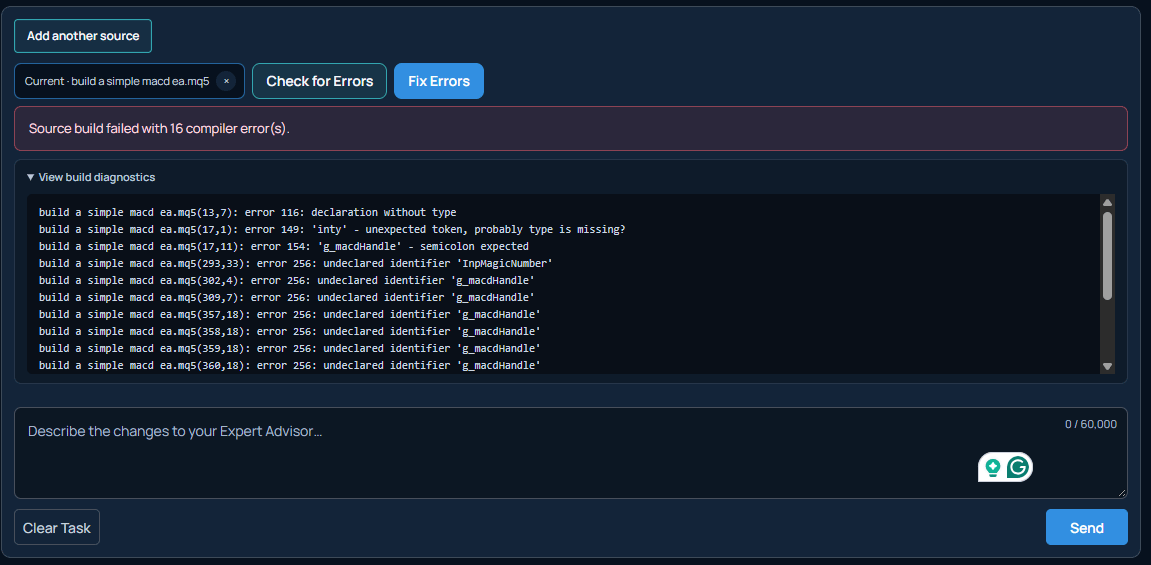
Start with Check for Errors. When shared source has compiler errors, Xen displays Fix Errors. Generated code with unresolved build errors offers Continue repair. These buttons prepare the source and diagnostics for a repair request; choose Send to ask Xen to correct the code using your selected model.
Watch the bug-fixing video walkthrough
Experts or indicators with bugs
After using Build Expert Advisor or Build Indicator, wait for the complete response and read its build result. Xen can compile generated MQL5 source in MetaEditor and attempt automatic corrections when errors are found. A successful result may say Build passed or Build passed after automatic repair.
The complete code response also has a Check for Errors button beside its copy and download actions. Choose it to compile the exact source in that response. This is useful when you want to check a new EA, a new indicator or a revised version before downloading it.
If the check reports errors, or automatic correction stops with errors remaining, choose Continue repair. Xen places the complete source and compiler diagnostics into a prepared request. Review the request in the composer and choose Send. Wait for the revised source and its new build result before testing that version.
Check MQL5 source
Choose Existing Expert Advisor for an EA or Existing Indicator for a custom indicator. You can use these tasks for code written elsewhere or an earlier Xen version that you have since edited in MetaEditor.
- Choose Share source code, then paste the complete source or use Load MQL source file.
- Check the
.mq5filename, select Current codebase and choose Add source. - Choose Check for Errors beside the attached current source. Xen compiles it in MetaEditor and reports errors and warnings without editing the file.
- If source errors are found, open View build diagnostics to inspect them, then choose Fix Errors.
- Review the prepared repair request and choose Send. Xen uses the attached source and exact diagnostics to request a complete corrected file while preserving unrelated behaviour.
Supply editable MQL5 source rather than a compiled .ex5 file. If the program needs custom .mqh includes, supply those dependencies as additional source files and preserve their filenames. MQL4 code needs strategy conversion or indicator conversion before it can be checked as MQL5.
The screenshot shows an existing EA attachment. For an indicator, follow the same source-sharing process in Existing Indicator and supply the complete indicator file.
Understand the build result
Build passed means MetaEditor compiled that source without errors. Read any warnings and decide whether they need attention. A compiler pass does not establish that entry rules, indicator calculations or alerts behave as intended.
Build failed with source diagnostics means there are compiler errors to investigate. Use Fix Errors for an attached current codebase or Continue repair beneath a generated response, then send the prepared request. If another check still finds errors, continue with the latest complete source and diagnostics.
Build check unavailable, a timeout or a check that could not complete means compilation has not been verified. Retry the check or compile locally in MetaEditor and share the exact output. Check for missing include files and custom dependencies before requesting changes to otherwise valid code.
Fix MQL5 Errors
The dedicated Fix MQL5 Errors task also accepts either an Expert Advisor or an indicator. Paste the complete source into Paste your complete MQL5 source, or choose Upload .mq5 file. You can paste exact MetaEditor error messages into the optional errors field, or leave it blank for an automatic check.
Choose Check for Errors if you only want to inspect compilation. Choose Fix MQL5 Errors to check the source and request a correction when the compiler finds errors. Xen then checks the returned repair in MetaEditor. If it asks for clarification, answer the question and choose Continue Repair. If errors remain, repeat the repair using the latest source.
Fix an Expert Advisor
For a trading logic or runtime bug, use Existing Expert Advisor and describe the problem in the request. Include the symbol, timeframe, inputs, test period and the specific trade or event that demonstrates it. Copy relevant Experts or Journal messages exactly, and explain what should have happened.
For example: “The EA opens two buy positions on the same completed-bar signal. On EURUSD M15 with these inputs, the second entry occurs at the same signal time. Allow only one entry per signal and preserve the existing position sizing, stop loss and take profit rules.”
A compilation check cannot detect every duplicated entry, missed exit or incorrect risk calculation. After the repair, repeat the same test in Strategy Tester and inspect the affected trades before trying other settings.
Fix an indicator
Use Existing Indicator for wrong values, missing arrows, repeated alerts, repainting concerns or drawings that disappear. Provide the chart symbol, timeframe, inputs and exact candle where the output differs from your expectation. Explain whether the calculation uses the current candle or completed candles.
For example: “The indicator sends an alert on every tick after a crossover. Send one alert per confirmed crossover at bar close. Keep the plotted values, colours and buffer indexes unchanged.” Add an image reference when it helps show a chart problem, together with the full source and a written explanation.
After the correction, compare values and signal bars on the same chart. Reload the indicator and change timeframe to check consistency. If an EA reads its buffers, test that integration too.
Download, compile and test
Keep the previous version, then use Download .mq5 on the complete corrected response. Follow Using Code in MetaTrader to compile the replacement in your local MetaEditor with its required dependencies.
Repeat the test that revealed the bug. For EAs, inspect entries, exits, volume and protective orders in Strategy Tester, then check behaviour on a demo account. For indicators, compare calculations, plots, signal timing and alerts. Use Requirements Verification to review the implementation against your specification when needed.
If the issue remains, return with the latest complete source, fresh diagnostics or logs, and the observed result. Keep each request focused on the fault you can reproduce so the next correction can be checked against the same example.
Watch the bug-fixing video
This walkthrough demonstrates fixing bugs in an existing Expert Advisor. The written guide above also covers checking newly generated code and repairing MQL5 indicators.
Tip: Set the video quality to HD (1080p) for the best viewing experience.