Create an Add-On
If you have NinjaTrader source code but do not know how to package it for installation, Create Add-On does this for you. It checks the code for compilation errors and, if the check passes, creates an installable ZIP. You do not need coding knowledge to use the utility, and it does not use AI credits.
1. Open the tool
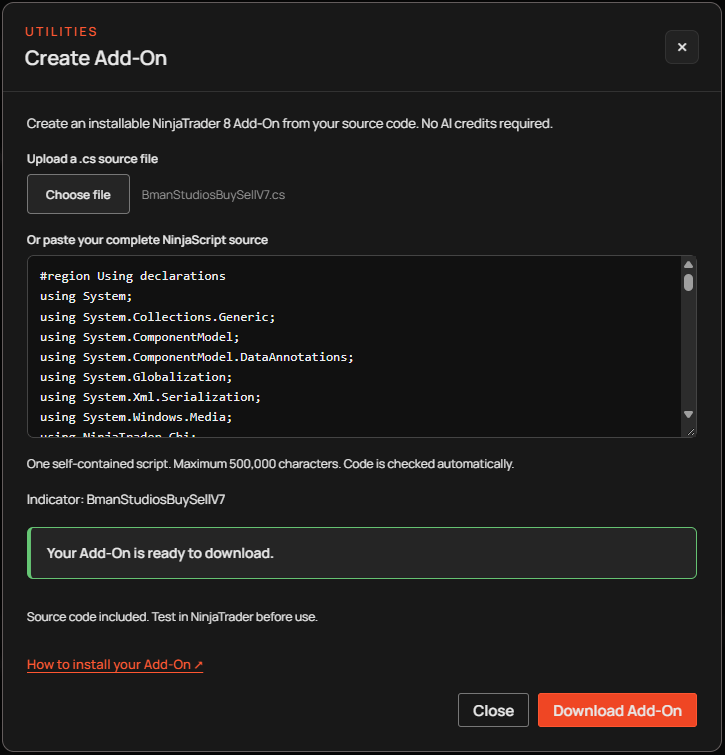
In the Xen workspace, find Utilities in the left sidebar and select Create Add-On.
2. Add the source code
Upload a .cs file or paste the complete NinjaTrader 8 indicator or strategy source code.
The utility supports one self-contained script, up to 500,000 characters. This means the script must contain the code it needs in one file. Separate custom indicators, DLLs and supporting files are not bundled into the ZIP.
3. Create the Add-On
Select Create Add-On. Xen automatically checks compilation for code errors before creating the installable ZIP.
The animated progress messages show what Xen is doing. Checking code for errors… means the compilation check is running. Code check passed. Creating Add-On… means the check passed and Xen is preparing the ZIP. Wait until Your Add-On is ready to download. appears.
This compilation check and packaging process does not use AI credits.
4. If code errors are found
The utility displays a warning and does not create a download. It does not repair the code automatically or transfer it into a task.
Close the window. In the left sidebar, select Existing Indicator for indicator source code or Existing Strategy for strategy source code.
Add the complete source code using that task’s source-code control. Describe the problem and ask Xen to repair it. Include compiler messages if available. AI-assisted repairs use credits.
After Xen returns corrected code, select Download Add-On beneath the response. This automatically runs a compilation check when needed and downloads the Add-On if the check passes. You can also select Check NinjaScript Errors to check the code without downloading it.
Alternatively, copy the complete corrected source back into Utilities → Create Add-On and create the package there.
5. Download and install
When the utility succeeds, select Download Add-On to save the ZIP. The archive contains readable source code; it is not a protected compiled DLL.
Follow the NinjaTrader Xen installation instructions to install it.
A successful Xen compilation check means the code passed that compilation check. It does not prove that the script will run correctly, follow the intended trading rules or work with every dependency in your local installation, such as other indicators or libraries.
Compile and test the code in your own NinjaTrader installation before live use. Check what happens while it runs and whether its trading behaviour matches your expectations; compilation alone cannot confirm these.
Create a NinjaScrippt Add-On
Watch this video on how to create a NinjaTrader 8 NinjaScript AddOn.
Tip: Set the video quality to HD (1080p) for the best viewing experience.