Install a NinjaTrader Add-On
Xen can package a completed strategy or indicator as a NinjaTrader Add-On ZIP after its source passes Build check. This is normally the easiest installation method because NinjaTrader imports the source into the correct Strategies or Indicators folder. You can also copy the generated code or download its .cs file and install it manually through NinjaScript Editor. Whichever method you use, compile and test the script in your own NinjaTrader installation before enabling it for live trading.
How to Install the Add-On ZIP
Run Build check below the generated code. When the check passes, select Download Add-On and save the ZIP file somewhere you can find it easily.
Keep the downloaded file zipped
Do not extract the Add-On. NinjaTrader requires the original .zip file when importing it.
Open NinjaTrader and use the Control Center to complete the installation:
- Select Tools > Import > NinjaScript Add-On.
- Locate the Add-On ZIP downloaded from Xen and select Import.
- Accept the import or replacement messages displayed by NinjaTrader.
- Restart NinjaTrader after the import has completed.
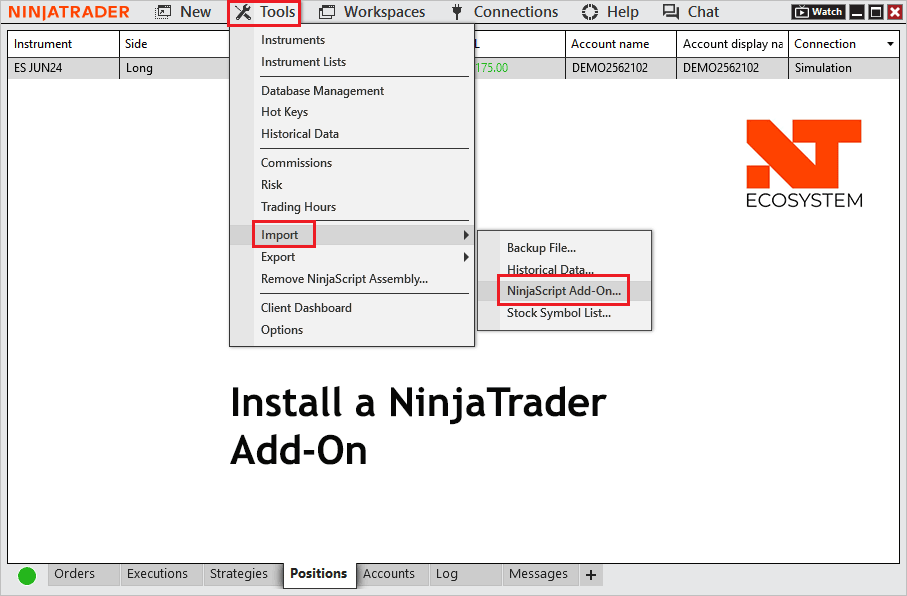
After restarting, an indicator is available from the chart's Indicators window. A strategy is available from the Strategies window and Strategy Analyzer. Review its settings before use, then test it with historical data and a simulation account.
Update an installed Add-On
Download the revised Add-On from the latest Xen code response and import it using the same steps. When NinjaTrader asks whether existing files should be replaced, select Yes so that the older source is overwritten. Restart NinjaTrader after the update. If you have edited the installed source manually, save a separate copy before importing an update. Replacing the Add-On can overwrite those local changes.
Remove an Add-On
Remove an imported script through NinjaTrader rather than deleting files from its Custom folder manually:
- Open the NinjaTrader Control Center.
- Select Tools > Remove NinjaScript.
- Select the Add-On you want to remove and follow the confirmation prompts.
- Restart NinjaTrader to complete the removal.
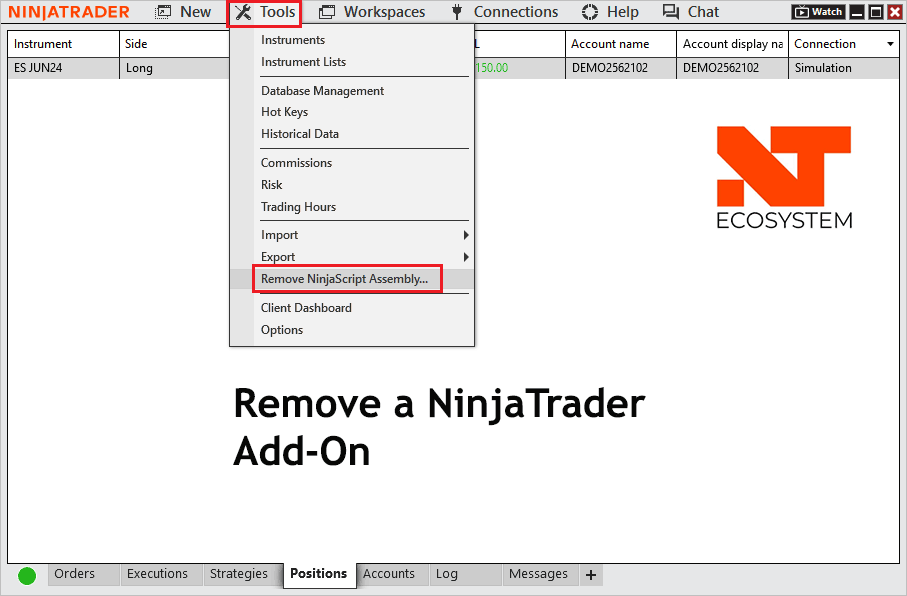
If NinjaTrader reports that another script depends on the Add-On, remove or update the dependent script first. Do not remove shared files unless you know they belong exclusively to the Add-On.
Install the source manually
Use this method when you prefer to review and paste the source yourself. Open NinjaTrader and select New > NinjaScript Editor. In NinjaScript Explorer, locate Indicators or Strategies, right-click the appropriate folder and create a new indicator or strategy. Give the script exactly the same name as the public class in Xen's generated code. When the template opens, replace all of its contents with the complete code from Xen and press F5 to compile.
For an existing script, open that script instead of creating another copy. Replace its contents with Xen's complete revised source and compile again.
If the Add-On will not import
An error saying the package is corrupt or does not contain the expected metadata commonly means that the ZIP was extracted, incompletely downloaded or altered after download. Delete that copy, run Download Add-On again and import the new ZIP without opening or extracting it. Make sure NinjaTrader 8 is current. If Windows has blocked the downloaded file, right-click the ZIP in File Explorer, open Properties, select Unblock when that option is present, and try the import again.
If the source compiles in Xen but fails locally, paste the complete NinjaTrader compiler or Log message directly into your selected Xen code task. Local Add-Ons and platform-version differences can introduce dependencies that are not available to Xen's Build Check server. For NinjaTrader's own archive instructions, see the official NinjaScript import guide and NinjaScript export guide.