Projects, History and Export
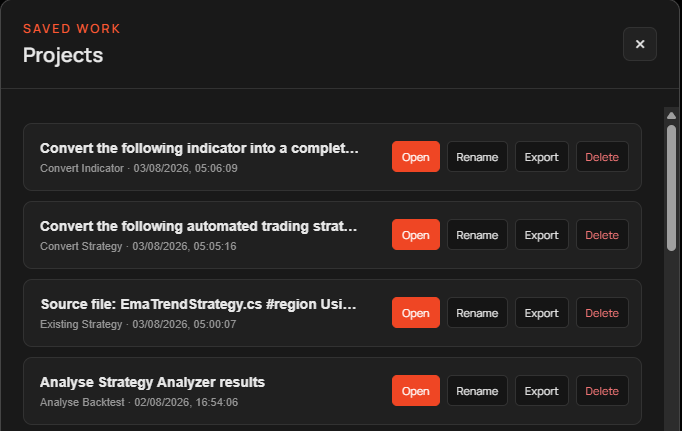
Xen saves a project after a completed response and after diagnostic actions that update its state. The saved project contains its task, selected model and conversation, allowing you to return to an earlier development session without reconstructing the context. Open Projects from the workspace header to view saved work. A project can be opened, renamed, exported or deleted. Opening restores the conversation and latest task state. When several Build Checks have been run, only the latest diagnostic card is restored.
Xen AI Projects and Project Versions
The following video demonstrates how Projects and Project Versions work together inside Xen AI.
Tip: Set the video quality to HD (1080p) for the best viewing experience.
Source History
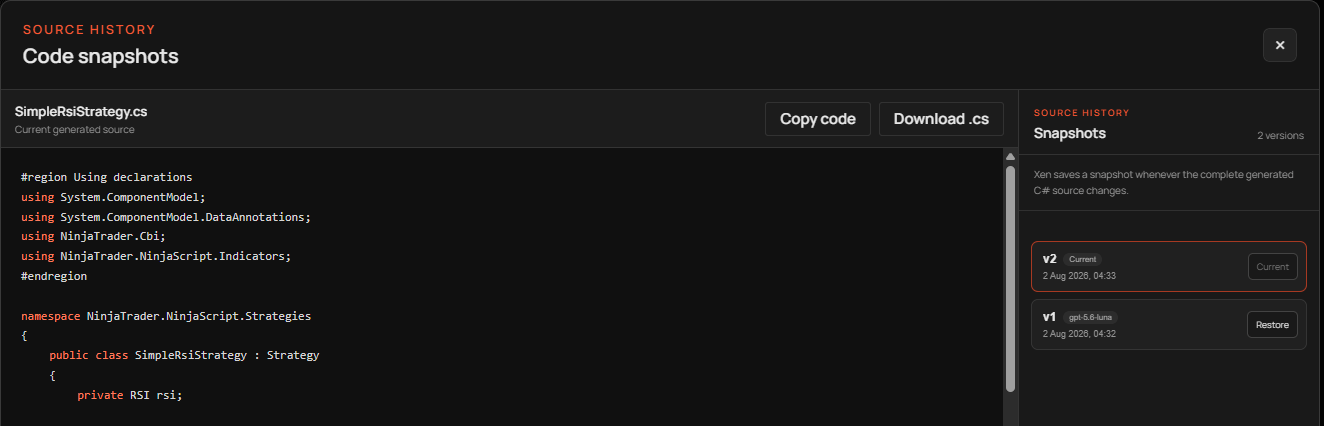
Xen creates a source snapshot when the complete generated C# changes. Open History to inspect revisions associated with the current project. A snapshot records the source, task, model and creation time. Restoring a snapshot makes that revision the current project source and conversation state. Use this when a later modification introduced a problem or when you want to continue from a previously working version.
History is not a substitute for source control or a local backup. Download important .cs files and keep tested versions with your own project records.
Exporting a conversation
The Export action downloads a self-contained HTML file. It opens in an ordinary web browser and preserves the project title, task, conversation roles, code and line breaks. The browser can print the document or save it as PDF. Export is useful when requesting support or keeping an audit of the development discussion. Review the file before sharing it because it can contain trading logic, source code and details entered in your requests.
Starting cleanly
Use Clear Task when the next request is unrelated to the active project. Continuing unrelated work in the same conversation can cause the model to apply old requirements to a new script. Deleting a project is different from clearing the current workspace. Delete only when its saved conversation and history are no longer required.